
01
Select Category
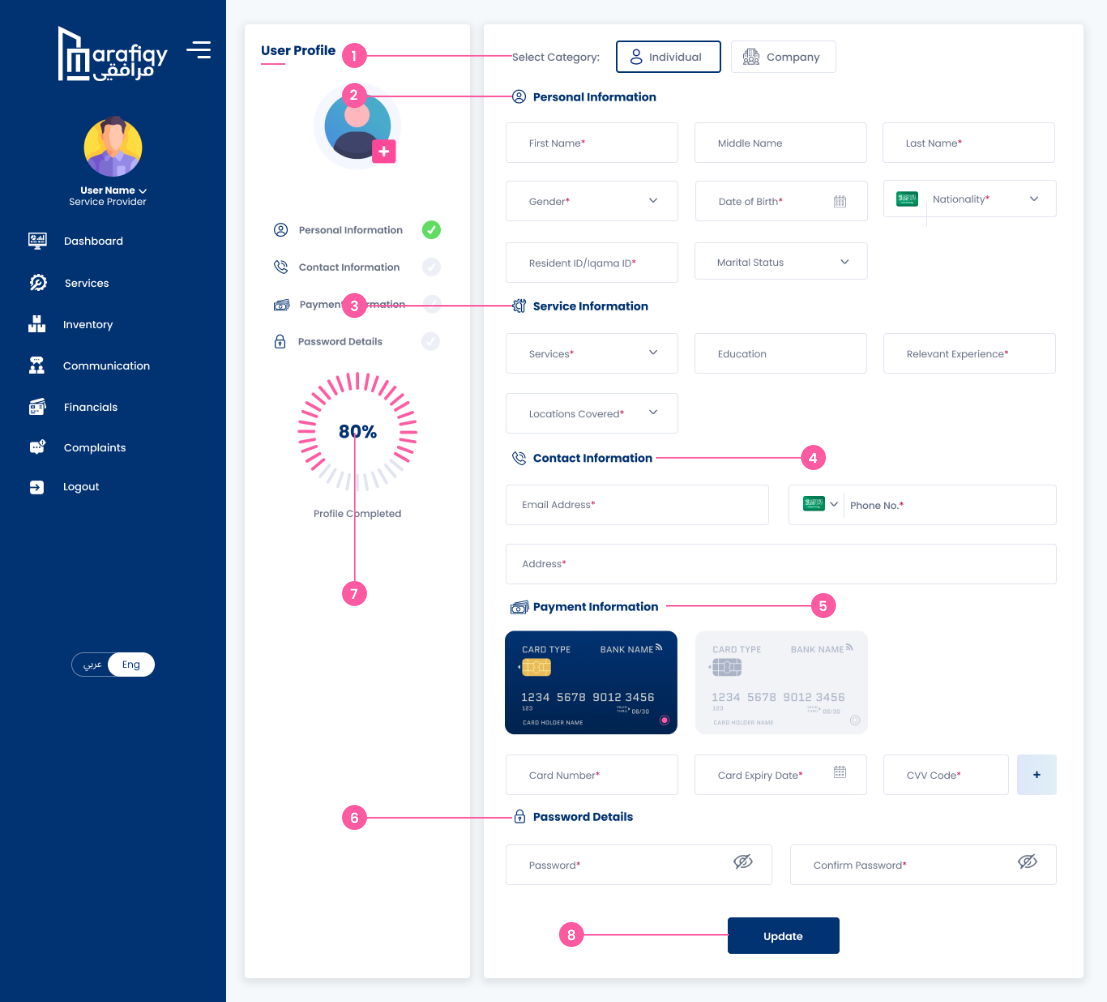
User can choose between Individual or Company profile type.
Follow the steps below to complete this action inside Marafiqy.
User can choose between Individual or Company profile type.
User enters basic details like Name, Gender, DOB, Nationality, ID, and Marital Status.
User provides Service Type, Education, Relevant Experience, and Locations Covered.
User adds Email Address, Phone Number, and Address for communication purposes.
User adds Card Details (Number, Expiry, CVV) for transactions or payouts.
User creates or updates Password and Confirm Password for account security.
Displays progress percentage (e.g., 80%) indicating how much of the profile is filled.
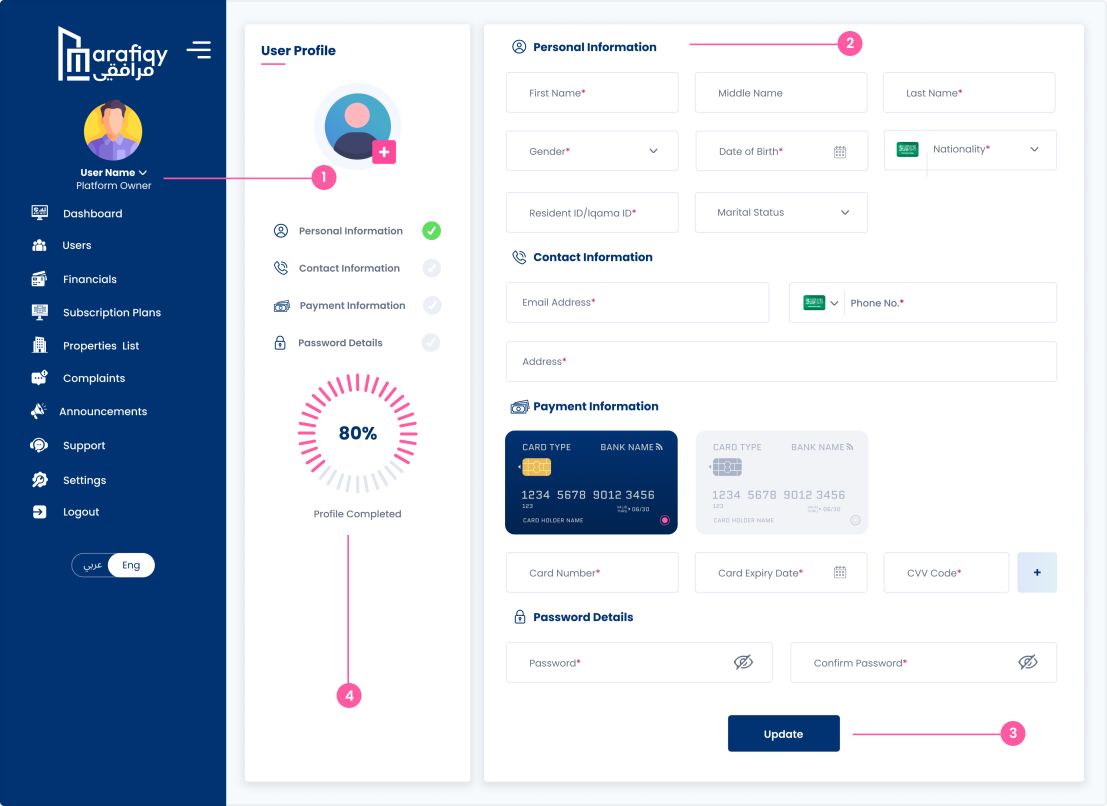
User clicks Update to save all entered or modified profile details.
User can select Company mode for creating or editing a business profile.
Section where user provides Company Name, CEO Name, CR/Unified ID, Website, and Services.
Enter Point of Contact (POC) details including Name, Phone, and Email.
Specify Services Offered, Education, Experience, and Locations Covered.
Add or update Card Number, Expiry Date, and CVV Code for billing or payments.
User can set or update Password and Confirm Password for login security.
Shows completion percentage (e.g., 80%) to indicate progress of profile setup.
Allows user to save or update all entered company details and payment info.